Terminal Management
Manage multiple terminal sessions, organize your workspace with tabs and splits, and keep your workflow efficient.
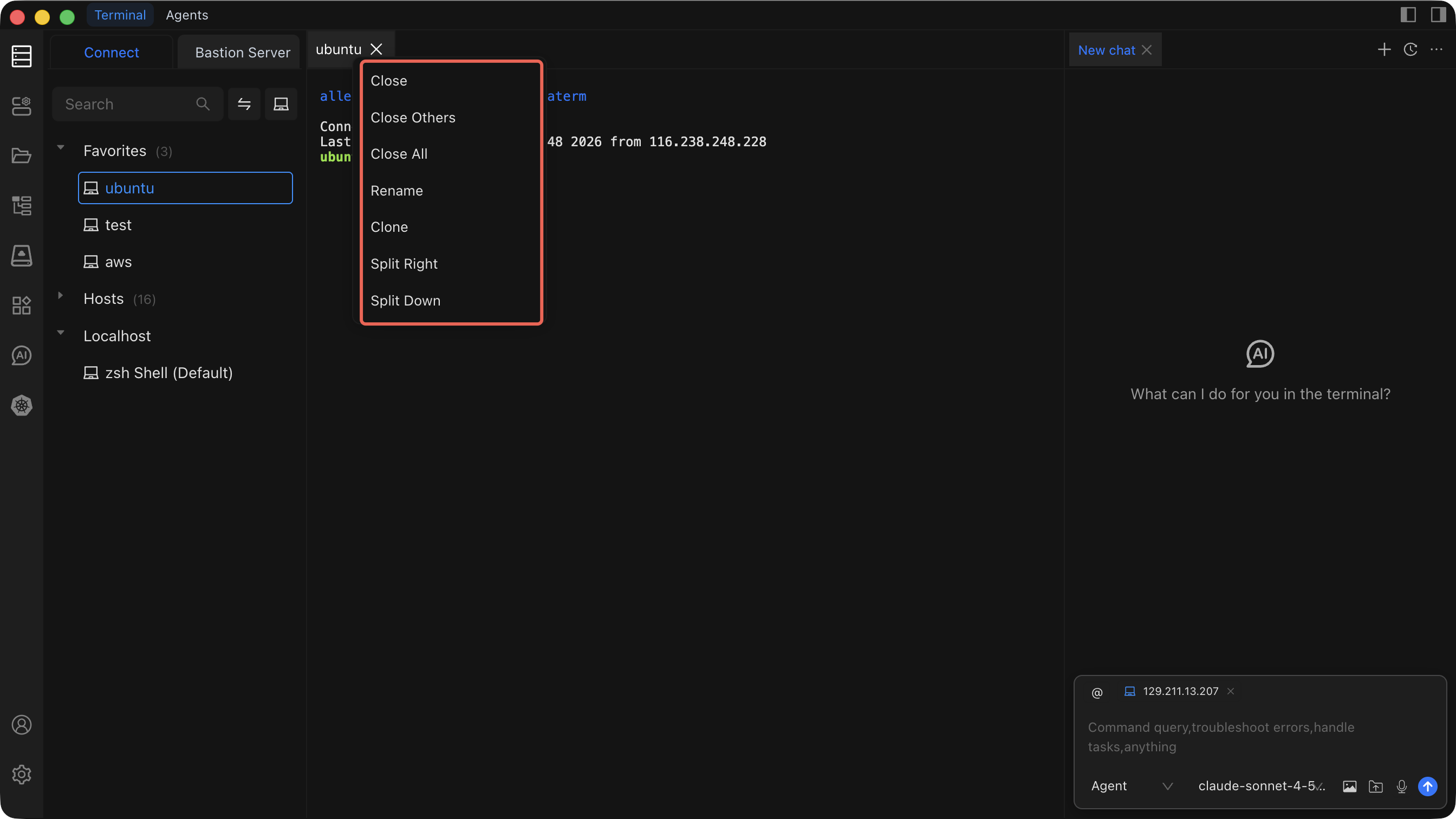
Tab Menu Bar Actions
Right-click a tab or use the tab menu bar to access the following actions:
| Action | What It Does | When to Use It |
|---|---|---|
| Close | Closes the current terminal session | When you are done with a task and no longer need the session |
| Close Others | Closes every session except the one currently focused | When your workspace is cluttered and you want to keep one session |
| Close All | Closes all open terminal sessions | When you are switching contexts or ending your work |
| Clone | Duplicates the current session into a new tab | When you need a second session on the same host |
| Split Right | Creates a horizontal split pane to the right | When you want side-by-side terminals (e.g., logs + commands) |
| Split Down | Creates a vertical split pane below | When you want stacked terminals (e.g., monitoring + operations) |
Right-Click Menu Functions
Right-click anywhere inside the terminal to access a context menu with the following options:
Basic Operations
| Function | Description |
|---|---|
| Copy | Copy the selected text to the clipboard |
| Paste | Paste clipboard content into the terminal |
| Search | Open the search bar to find text in the terminal output |
| Clear | Clear all visible output in the current terminal |
| File Manager | Open a file manager rooted at the terminal's working directory |
| Font Size | Scale the terminal font size up or down |
Connection Management
| Function | Description |
|---|---|
| Disconnect | Disconnect the current terminal's SSH connection |
| New Terminal | Open a brand-new terminal session |
| Close Terminal | Close the current terminal session |
Split Operations
| Function | Description |
|---|---|
| Split Right | Create a horizontal split pane |
| Split Down | Create a vertical split pane |
Tips for Managing Terminals
- Use splits for related tasks -- keep logs on one side and commands on the other. See Terminal Operations for details on splitting.
- Rename tabs -- right-click a tab and rename it so you can quickly identify sessions.
- Close what you do not need -- unused sessions consume resources. Use Close Others or Close All to tidy up.
- Use AI to help -- let Chat to AI generate commands so you can focus on results instead of syntax.
Important Notice
- Terminal operations require appropriate permissions on the remote host.
- Always review commands before executing them, especially on production servers.
- Verify risky operations in a test environment first.