Add a Personal Host
Add a personal server to Chaterm so you can connect to it via SSH directly from the workspace.
Prerequisites
Before adding a personal host, make sure you have the following ready:
- Chaterm installed and running on your machine. See Downloads if you have not installed it yet.
- SSH credentials for the target server -- either a password or an SSH private key.
- Server IP address (or hostname) and the SSH port number (default
22).
Steps
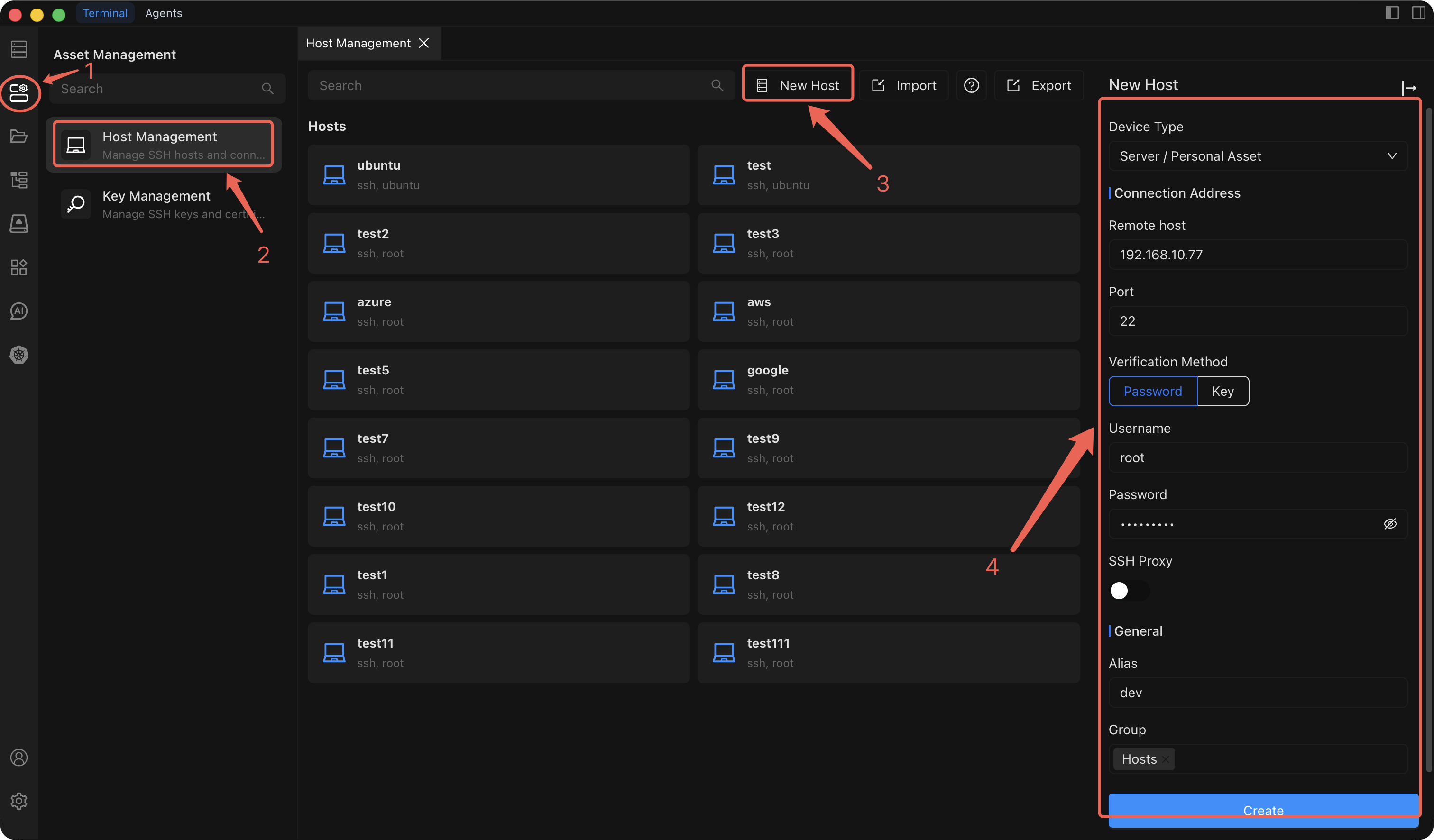
- Open the Host Management page from the left sidebar.
- Click Add Host in the top-right corner of the Host Management page.
- In the Add Host sidebar that opens, set Device type to Server / Personal.
- Fill in the remaining configuration fields described in the table below.
- Click Create to save the host.
Configuration Fields
| Field | Description | Required |
|---|---|---|
| Device type | Select Server / Personal to indicate this is a personal server. | Yes |
| Connection IP/Address | The IP address or hostname of the target server (e.g. 192.168.1.100 or dev.example.com). | Yes |
| Port | The SSH service port on the target server. Defaults to 22. Change this only if your server uses a non-standard port. | Yes |
| Username | The SSH login username (e.g. root, ubuntu, deploy). | Yes |
| Authentication method | Choose Password or SSH Key. See the tip below for guidance. | Yes |
| SSH proxy | If the server is behind a firewall or NAT, configure an SSH proxy to route the connection through an intermediate server. Leave empty for direct connections. | No |
| Alias | A friendly display name so you can quickly identify this host in the host list (e.g. Dev API Server). | Yes |
| Group | Assign the host to a group for easier organization (e.g. development, production). You can select an existing group or type a new group name. | No |
Authentication Methods
Choosing an authentication method
- Password authentication is the simplest option. Enter the SSH password for the specified username.
- Key authentication is more secure and recommended for production servers. Select an SSH key that has already been imported in Key Management, or click the link to add a new key first and then return here to select it.
What Happens Next
After you click Create, the new host appears in your host list on the Host Management page. From here you can:
- Connect immediately -- click the host entry to open an SSH terminal session. See Connect to a Host for details on the terminal features available during a session.
- Edit or organize -- right-click the host to rename, clone, move to a different group, or delete it. See Edit, Clone & Delete for more information.
- Manage SSH keys -- if you need to rotate or add keys later, visit Key Management.