Add a Router
Add a router or network device (such as a switch or firewall) to Chaterm so you can manage it via SSH alongside your servers.
When to Use Router vs Personal Host
Use Network device / Switch for hardware that runs a network operating system (e.g. Cisco IOS, Juniper Junos, MikroTik RouterOS, or similar). These devices often have non-standard shell behaviors and limited command sets compared to a full Linux/Unix server.
Use Server / Personal for general-purpose servers, virtual machines, and cloud instances that run a standard operating system. See Add a Personal Host for those instructions.
Prerequisites
Before adding a router, make sure you have:
- Chaterm installed and running. See Downloads if you have not installed it yet.
- Device credentials -- either a password or an SSH private key for the network device.
- Device IP address (or hostname) and the SSH port number (default
22). - SSH enabled on the network device. Many routers and switches ship with SSH disabled by default; consult your device documentation to enable it.
Steps
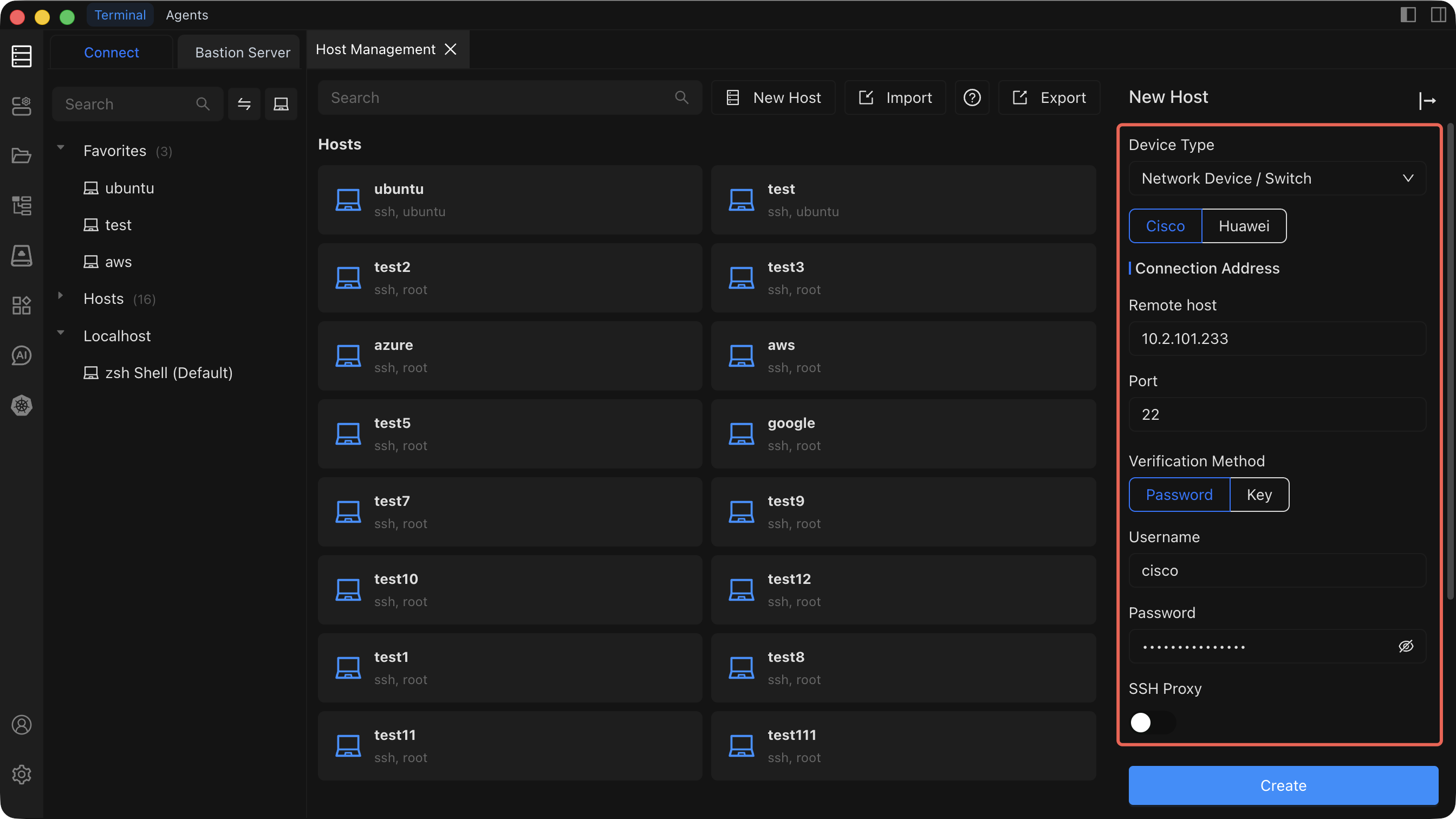
- Open the Host Management page from the left sidebar.
- Click Add Host in the top-right corner of the Host Management page.
- In the Add Host sidebar that opens, set Device type to Network device / Switch.
- Fill in the remaining configuration fields described in the table below.
- Click Create to save the device.
Configuration Fields
| Field | Description | Required |
|---|---|---|
| Device type | Select Network device / Switch to indicate this is a router, switch, or similar network appliance. | Yes |
| Connection IP/Address | The management IP address or hostname of the device (e.g. 10.0.0.1 or core-switch.lan). | Yes |
| Port | The SSH service port on the device. Defaults to 22. | Yes |
| Username | The SSH login username configured on the device (e.g. admin, cisco). | Yes |
| Authentication method | Choose Password or SSH Key. See the tip below for guidance. | Yes |
| SSH proxy | If the network device is on an isolated management VLAN or behind a firewall, configure an SSH proxy to route the connection through an intermediate server. Leave empty for direct connections. | No |
| Alias | A friendly display name so you can quickly identify this device in the host list (e.g. Core Switch - DC1). | Yes |
| Group | Assign the device to a group for organization (e.g. network, switches, firewalls). You can select an existing group or type a new name. | No |
Authentication Methods
Choosing an authentication method
- Password authentication -- enter the SSH password configured on the network device. This is the most common method for routers and switches.
- Key authentication -- select an SSH key that has already been imported in Key Management. Key-based authentication is supported on many modern network operating systems and is recommended when available.
Related Pages
- Add a Personal Host -- for adding standard servers and VMs.
- Add a Bastion Host -- for adding enterprise bastion/jump servers.
- Connect to a Host -- learn about the terminal features available during a session.
- Key Management -- import and manage SSH keys.