Command Autocomplete
Chaterm suggests commands as you type in the terminal, helping you work faster and reducing typos by drawing from your history, a built-in command library, and optional AI suggestions.
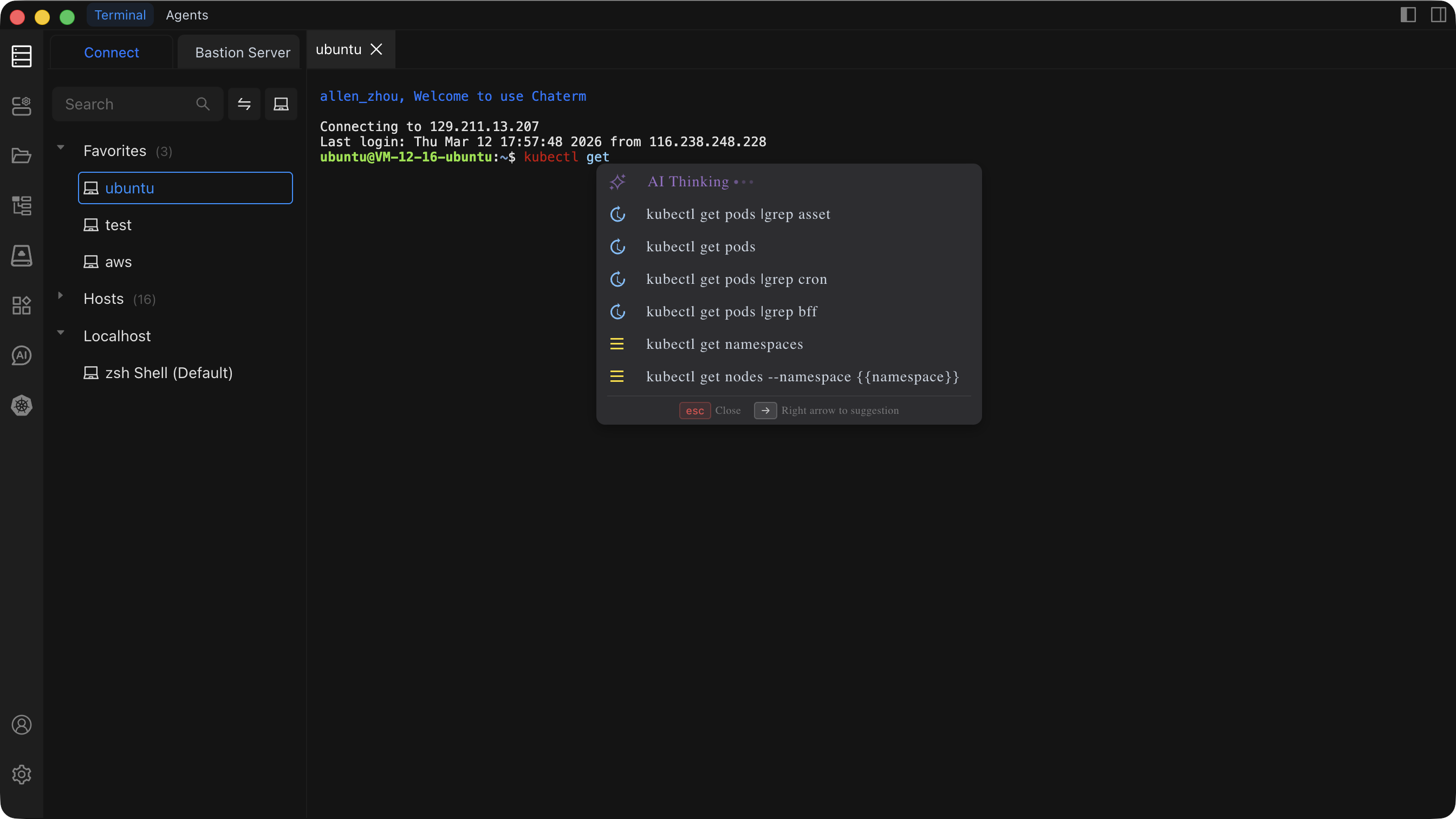
How It Works
Autocomplete combines three sources to generate suggestions:
- Command History -- prioritizes commands you have used on the current server, then supplements with frequently used commands from your other servers (cross-host recommendations).
- Built-in Command Library -- common Linux and shell commands are always available as suggestions.
- AI Smart Suggestions (Optional) -- generates context-aware command completions based on your current input.
Cross-host recommendations match the current server's usage patterns first, then fill in with related commands you frequently use on other servers.
Usage
- Start typing a command in the terminal. The autocomplete panel appears automatically.
- Press
→(right arrow) to enter selection mode. - Press
↑/↓to navigate between suggestions. - Press
Enterto confirm and insert the selected command. - Press
Escor←(left arrow) to exit selection mode or close the panel.
| Key | Action |
|---|---|
→ | Enter selection mode |
↑ / ↓ | Navigate between suggestions |
Enter | Confirm and insert the selected command |
Esc | Close the autocomplete panel |
← | Exit selection mode |
Configuration
You can enable or disable autocomplete in Settings > Extension Settings:
- Enabled (recommended) -- shows autocomplete suggestions while you type.
- Disabled -- hides the autocomplete panel entirely; you type commands manually.
For details on locating this toggle, see Extension Settings.
FAQ
The autocomplete panel is not showing up
- Confirm that Autocomplete is enabled in Settings > Extension Settings.
- Type at least one character and wait briefly for suggestions to appear.
- If the panel still does not appear, try restarting the terminal session.
AI suggestions are not appearing
- AI suggestions require a network connection. Local autocomplete (history and built-in commands) continues to work offline.
- Check that AI features are enabled in your settings.
Suggestions seem irrelevant
- Autocomplete improves over time as it learns from your command history.
- Cross-host suggestions may surface commands from other servers. If a suggestion does not apply, simply ignore it and keep typing.