Skills Usage Guide
Skills turn your workflows, best practices, and domain knowledge into reusable instruction sets that the AI follows automatically.
Why Skills?
Without Skills, Chaterm's AI relies on its general knowledge. With Skills, you transform it from a general assistant into a domain expert that works the way you want.
Imagine you are a Kubernetes SRE. Whenever a Pod is unhealthy, you typically:
- Check Pod status and events.
- Inspect logs.
- Analyze resource usage.
- Apply a fix.
Instead of running these commands manually or relying on generic AI suggestions, you create a Kubernetes Pod Troubleshooting Skill. The AI then follows your exact procedure end-to-end — as if you had personally trained it.
Get Started
Where to find Skills
- Terminal Skills official repository: chaterm/terminal-skills — a curated collection designed for terminal workflows.
- Community contributions: Search for
terminal-skillson GitHub to discover more community-maintained Skills.
Create a Skill
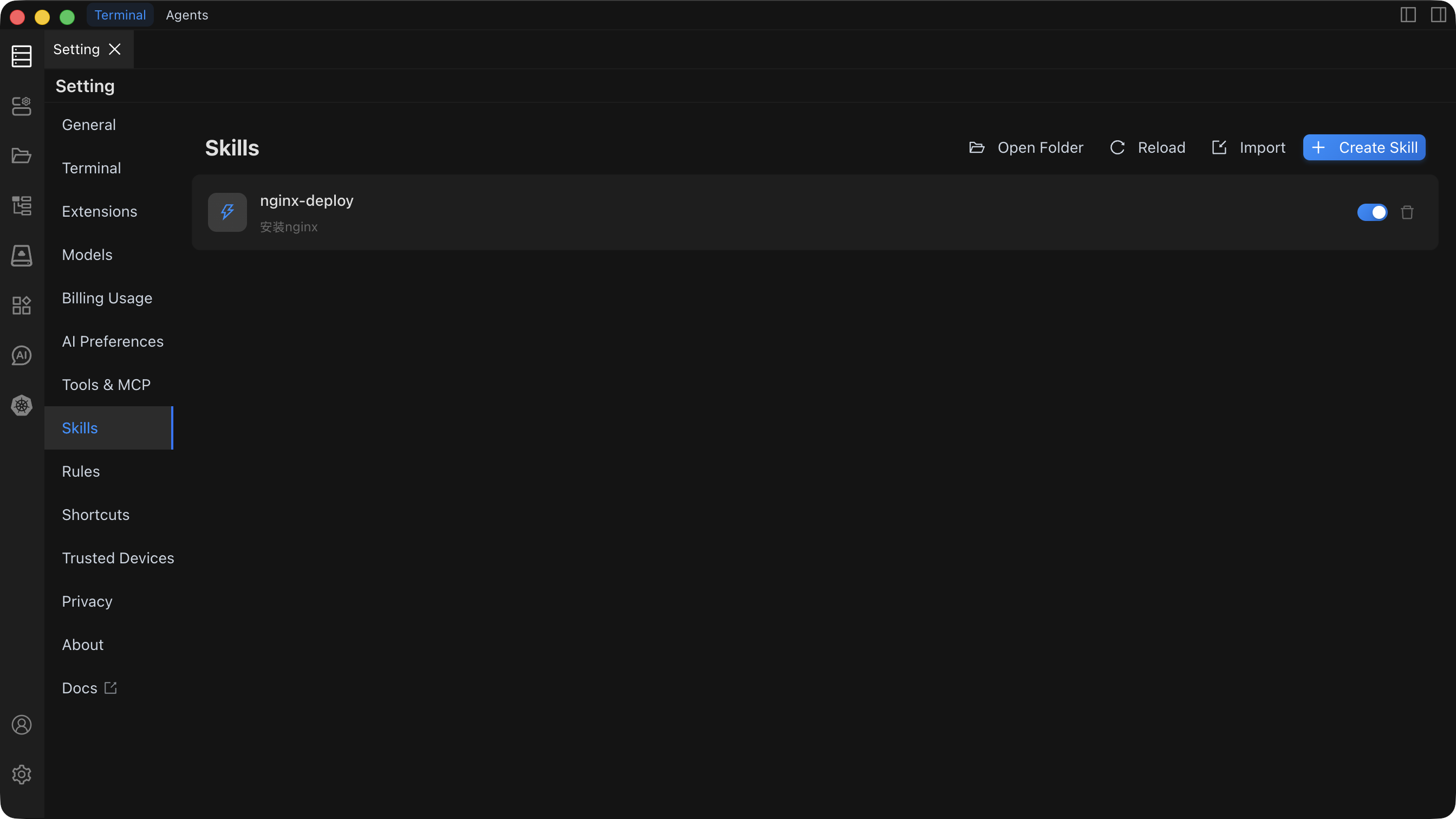
- Open Settings in Chaterm.
- Go to the Skills tab and click Create Skill (or Import).
- Fill in the fields:
- Name — display name of the Skill.
- Description — when to use this Skill and what it does.
- Content — detailed workflow and instructions (Markdown).
- Resource files (optional) — related scripts, templates, configs.
- Click Save. The Skill is enabled immediately and injected into the AI context.
TIP
Write a specific description with relevant keywords. The AI uses the description to decide when to apply the Skill, so clarity here directly impacts accuracy.
Skill Format Examples
Kubernetes Pod troubleshooting
# Kubernetes Pod Troubleshooting

## Description
Automatically run a complete troubleshooting workflow when a user reports an unhealthy Pod.

## Steps
1. Check Pod status and events
   - Run `kubectl get pod <pod-name> -n <namespace> -o yaml`
   - Review events from `kubectl describe pod <pod-name> -n <namespace>`

2. Inspect the last 100 lines of logs
   - Run `kubectl logs <pod-name> -n <namespace> --tail=100`

3. Analyze resource usage
   - Check CPU and memory: `kubectl top pod <pod-name> -n <namespace>`
   - Review resource limits: `kubectl get pod <pod-name> -n <namespace> -o jsonpath='{.spec.containers[*].resources}'`

4. Provide remediation suggestions
   - Based on the findings, provide targeted recommendations.
   - If resources are insufficient, suggest adjusting resource limits.
   - If configuration is incorrect, provide corrected configuration examples.
Git branch cleanup
# Git Branch Cleanup

## Description
Clean up local and remote branches that have been merged, keeping the repository tidy.

## Steps
1. Fetch latest remote state
   - Run `git fetch --prune`

2. List merged branches
   - Run `git branch --merged main | grep -v 'main'`

3. Confirm with the user before deleting
   - Show the list and ask for confirmation.

4. Delete confirmed branches
   - Local: `git branch -d <branch>`
   - Remote: `git push origin --delete <branch>`
Docker log analysis
# Docker Log Analysis

## Description
Analyze Docker container logs to identify errors, warnings, and performance issues.

## Steps
1. Check container status
   - Run `docker ps -a --filter name=<container>`

2. Retrieve recent logs
   - Run `docker logs --tail=200 --timestamps <container>`

3. Search for errors and warnings
   - Filter for ERROR, WARN, FATAL, OOM patterns.

4. Summarize findings and suggest fixes
Using Skills in Conversations
Once a Skill is enabled, simply describe your task in natural language. The AI recognizes the scenario and applies the matching Skill automatically.
Example conversation:
You: This Pod looks unhealthy, help me troubleshoot it.

AI: [Automatically using the Kubernetes Pod Troubleshooting Skill]
    - Checking Pod status...
    - Inspecting logs...
    - Analyzing resource usage...
    - Providing remediation suggestions...
Multiple Skills working together
You can enable several Skills at once. The AI picks and combines them based on the conversation context:
- When multiple Skills match, the AI can chain them together.
- Skills complement each other to form end-to-end solutions.
Enable or disable a Skill
In the Skills management page you can:
- Enable: Toggle on to inject the Skill into the AI context.
- Disable: Toggle off to remove it from context.
- Edit: Update content and configuration at any time.
- Delete: Remove Skills you no longer need.
Key Capabilities
| Capability | Description |
|---|---|
| Reusable instruction sets | Create once, apply across many scenarios without rewriting. |
| Automatic context injection | Enabled Skills are added to the AI system prompt — no manual invocation needed. |
| Resource file support | Attach scripts, templates, and config files to make Skills more than plain text. |
| Team sharing | Share Skills across your team to standardize workflows and best practices. |
Advanced features
Conditional logic — Skills can include branching:
## Steps
1. Check service status.
2. If status is failed:
   - Inspect error logs.
   - Attempt to restart the service.
3. If status is active:
   - Verify the service is functioning correctly.
Resource file references — attach external files:
## Resources
- scripts/deploy.sh
- templates/config.yaml
Real-World Use Cases
Enterprise standardization
- Deployment Skill: Standardized application deployment procedure.
- Rollback Skill: Unified rollback process for production incidents.
- Security Check Skill: Standard security audit workflow.
Skills lower onboarding costs — new team members describe their goal, and the AI handles the workflow using existing Skills. Senior engineers' experience is captured as executable, shareable knowledge.
Personal productivity
- Automate repetitive tasks: Turn frequent multi-step workflows into one-click Skills.
- Extend AI capabilities: Inject domain expertise the AI does not have by default.
- Respond faster: Let the AI execute complex procedures without manual step-by-step guidance.
Import and Export
Import Skills
You can import Skills from:
Local files
- Markdown
SKILL.mdfiles. - ZIP Skill bundles that include resource files.
- Markdown
Terminal Skills repository
- Go to chaterm/terminal-skills.
- Pick the Skills you need and copy their folders into the Chaterm
skillsdirectory.
What to Read Next
- For troubleshooting and writing tips, see Skills Troubleshooting & Best Practices.
- To learn about the settings UI, see Skills Settings.