Skip to content

Terminal Settings

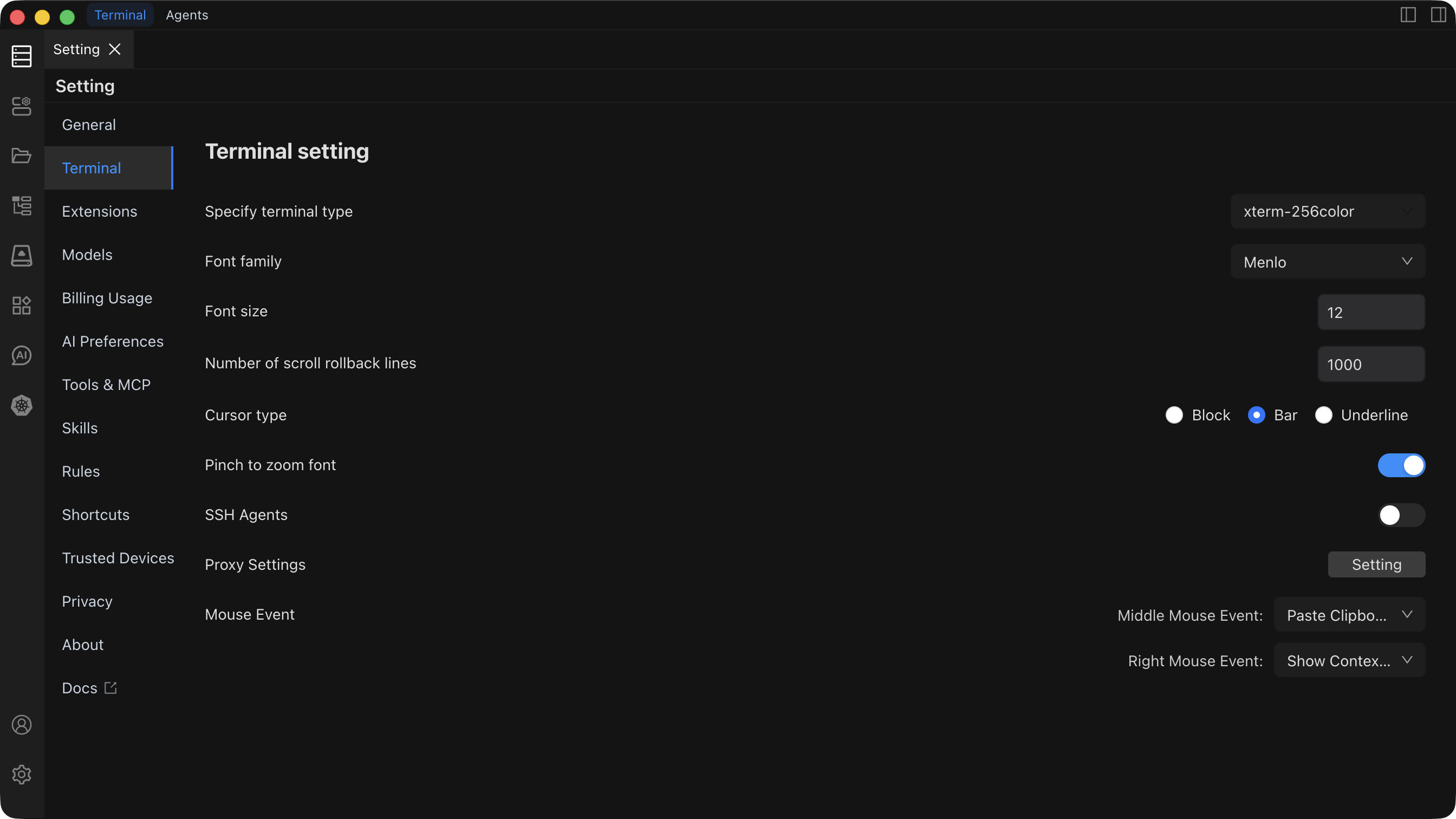
Terminal settings are used to customize the appearance and behavior of the terminal, allowing you to create a personalized terminal experience.

Terminal Type

Choose the terminal emulator type. Different terminal types support different features and characteristics.

Available Types:

  • xterm (Recommended): Modern terminal standard, supports rich features and color display
  • vt100: Classic terminal type with best compatibility
  • Other Types: Choose according to actual needs

Use Cases:

  • When connecting to older systems, choose terminal types with better compatibility
  • When specific features are needed, choose terminal types that support those features
  • By default, xterm type provides the best experience

Font Settings

Configure terminal display font and font size, affecting the readability and display effect of terminal content.

Configuration Options:

  • Font Selection: Choose the font used by the terminal (such as Monaco, Menlo, Consolas, and other monospace fonts)
  • Font Size: Set font size (typically range 10-24px)

Key Features:

  • Supports monospace fonts to ensure character alignment
  • Real-time font effect preview
  • Font size adjustments take effect immediately

Use Cases:

  • Adjust font size according to screen resolution and viewing distance
  • Choose easy-to-read fonts to reduce eye strain
  • Unify font settings in split-screen or multi-terminal scenarios

Recommendation

It's recommended to use monospace fonts to ensure code and command output are neatly aligned. Font size is recommended to be set to 12-14px according to screen size.

Terminal Scrollback

Set the number of lines in terminal history, determining how much historical output content can be viewed by scrolling up.

Configuration Details:

  • Default Value: Usually 1000 lines
  • Adjustable Range: Adjust according to system resources, recommended 500-10000 lines
  • Impact: Larger scrollback uses more memory

Use Cases:

  • Increase scrollback when viewing large amounts of log output
  • When you need to trace historical command output
  • Reduce scrollback appropriately when system resources are limited

Note

Setting scrollback too large will consume more memory. It's recommended to set it reasonably according to actual needs. If you frequently need to view large amounts of historical output, it's recommended to use terminal search functionality or log files.

Cursor Style

Choose the display style of the terminal cursor, affecting the visual effect of the cursor in the terminal.

Available Styles:

  • Block: Cursor displays as a solid square, most prominent
  • Underline: Cursor displays as an underline, takes up less space
  • Line/Bar: Cursor displays as a vertical line, similar to text editors

Use Cases:

  • Block cursor: Suitable for quickly locating cursor position
  • Underline cursor: Suitable when more display space is needed
  • Line cursor: Suitable for precise editing and positioning

Trackpad Zoom

Enable or disable trackpad gesture zoom for terminal font.

Function Description:

  • Enable: Supports using trackpad gestures (such as pinch-to-zoom) to zoom terminal font
  • Disable: Disable trackpad zoom to avoid accidental operations

Use Cases:

  • Enable this feature when you need to quickly adjust font size
  • Disable this feature to avoid accidental zoom
  • This feature is particularly useful when using on laptops

SSH Agents

Configure SSH key agents for managing SSH keys and authentication.

Function Description:

  • SSH Agent Forwarding: Forward local SSH Agent in SSH connections
  • Key Management: Manage keys used for SSH connections
  • Auto Authentication: After configuration, can automatically use keys for authentication

Use Cases:

  • When jump host connections are needed, configure SSH Agent forwarding
  • When managing multiple SSH keys
  • To simplify SSH connection authentication process

Recommendation

SSH Agent configuration requires some SSH knowledge. It's recommended to refer to relevant SSH configuration documentation. After correct configuration, it can significantly simplify multi-host connection processes.

Proxy Configuration

Configure network proxy used by terminal connections for accessing restricted networks or improving connection speed.

Configuration Options:

  • Protocol Type: Choose proxy protocol (HTTP, HTTPS, SOCKS5, etc.)
  • Proxy Address: Hostname or IP address of the proxy server
  • Port Number: Port of the proxy server
  • Authentication: Username and password for the proxy server (if required)

Use Cases:

  • Access network environments that require proxies
  • Improve connection speed and stability
  • Access specific resources through proxies

Note

Proxy configuration will affect all terminal connections. Please ensure the proxy server is stable and reliable. Incorrect configuration may result in connection failures.

Mouse Events

Configure the behavior of mouse middle button and right button in the terminal.

Configuration Options:

  • Mouse Middle Button: Choose the behavior of middle button click (paste, no operation, etc.)
  • Mouse Right Button: Choose the behavior of right button click (show menu, paste, etc.)

Key Features:

  • Supports custom mouse event behavior
  • Provides multiple event options
  • Configuration takes effect immediately

Use Cases:

  • When accustomed to using mouse middle button for paste
  • When you need to disable certain mouse operations
  • Customize mouse interaction methods

Best Practices

Performance Optimization

  • Set terminal scrollback according to actual needs to avoid excessive memory usage
  • Choose appropriate font size to balance readability and display content
  • Reasonably configure proxy to avoid affecting connection speed

Personalization Configuration

Recommendation

For first-time use, it's recommended to:

  1. Adjust font and font size according to screen size
  2. Choose a comfortable cursor style
  3. Configure mouse events according to usage habits
  4. Configure SSH Agents and proxy after familiarizing yourself with the system

Multi-Terminal Scenarios

  • Unify font settings to maintain visual consistency
  • Adjust scrollback according to terminal usage (log viewing terminals can be set to larger values)
  • Reasonably use trackpad zoom to quickly adjust font size

License