Skills Settings
Skills settings let you configure and manage custom Skills so that the AI can follow your predefined workflows and instructions — turning it from a “general assistant” into your “domain expert”.
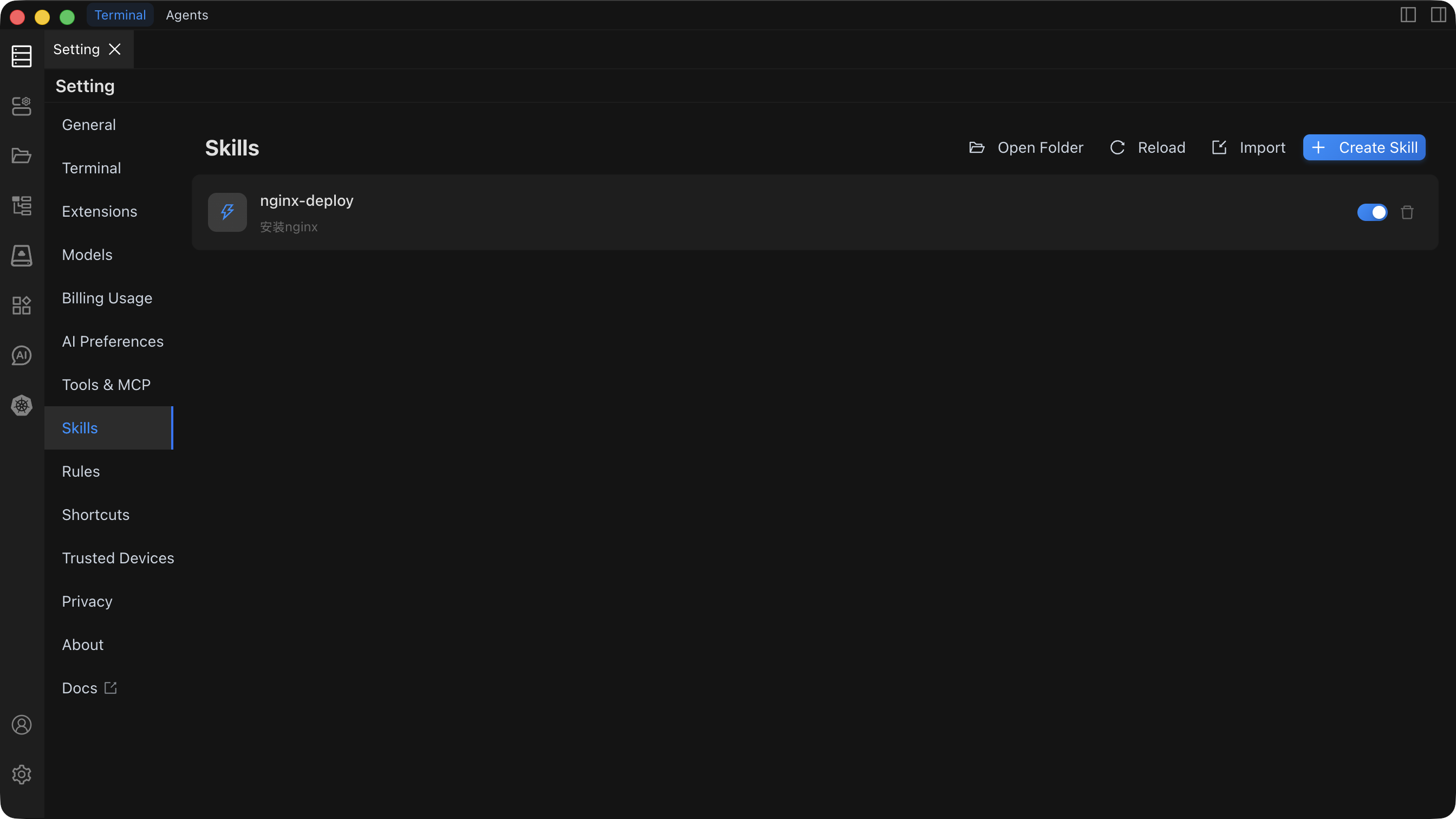
Overview
The Skills settings page provides the following core capabilities:
- Create Skill: Define custom workflows and instruction sets.
- Import Skill: Import Skills from an existing
.zippackage. - Manage Skills: Enable/disable, edit, and delete Skills.
Get Started
Create a New Skill
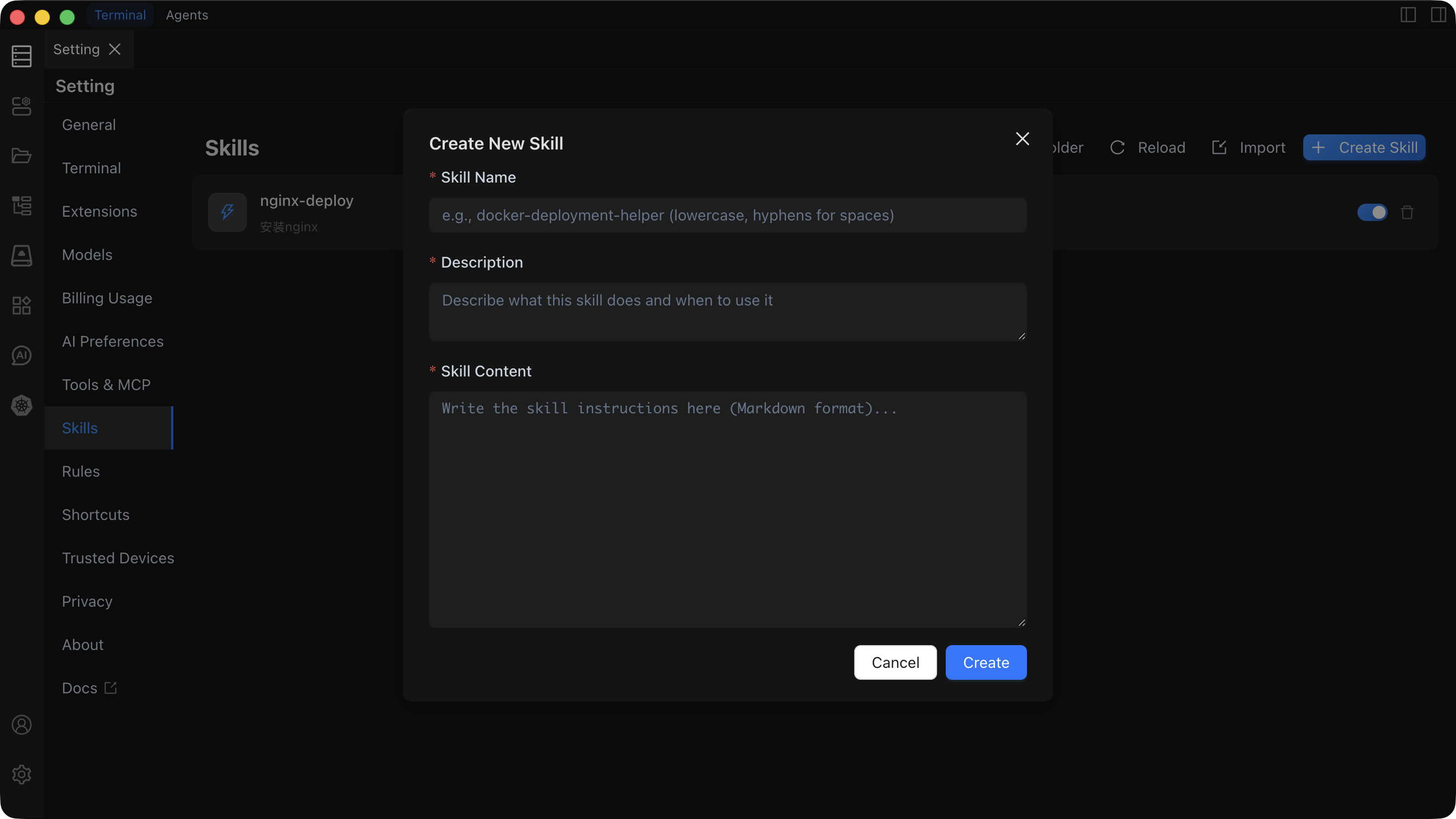
- In the Settings page, open the
Skillstab. - Click the Create Skill button.
- Fill in the Skill information:
- Name: Display name of the Skill.
- Description: What the Skill does and when to use it.
- Skill Content: Detailed workflow and instructions.
- Resource files (optional): Related scripts, templates, or other files.
- Click Save. The Skill is enabled automatically and injected into the AI context.
Import a Skill
Option 1: Import from ZIP
- In the
Skillstab, click Import. - Select a
.zipfile that contains aSKILL.mdfile. - Confirm the import. The Skill is added to the list and enabled automatically.
Option 2: Import from Folder
- In the
Skillstab, click Open Folder. - Move a folder that contains a
SKILL.mdfile into the openedskillsdirectory. - Back in the
Skillstab, click Reload. The Skill is added to the list and enabled automatically.
SKILL.md Format
Basic Structure
A standard SKILL.md should include the following structure:
markdown
# Skill Name

## Description

Briefly explain what the Skill does and when to use it.

## Steps

1. First step
2. Second step
3. ...
Related Documentation
For detailed usage, troubleshooting, and best practices, see:
- Skills Usage Guide – Full usage instructions and examples.
- Skills Troubleshooting – Common issues and solutions.