Shortcut Settings
View, customize, and reset keyboard shortcuts to speed up your workflow.
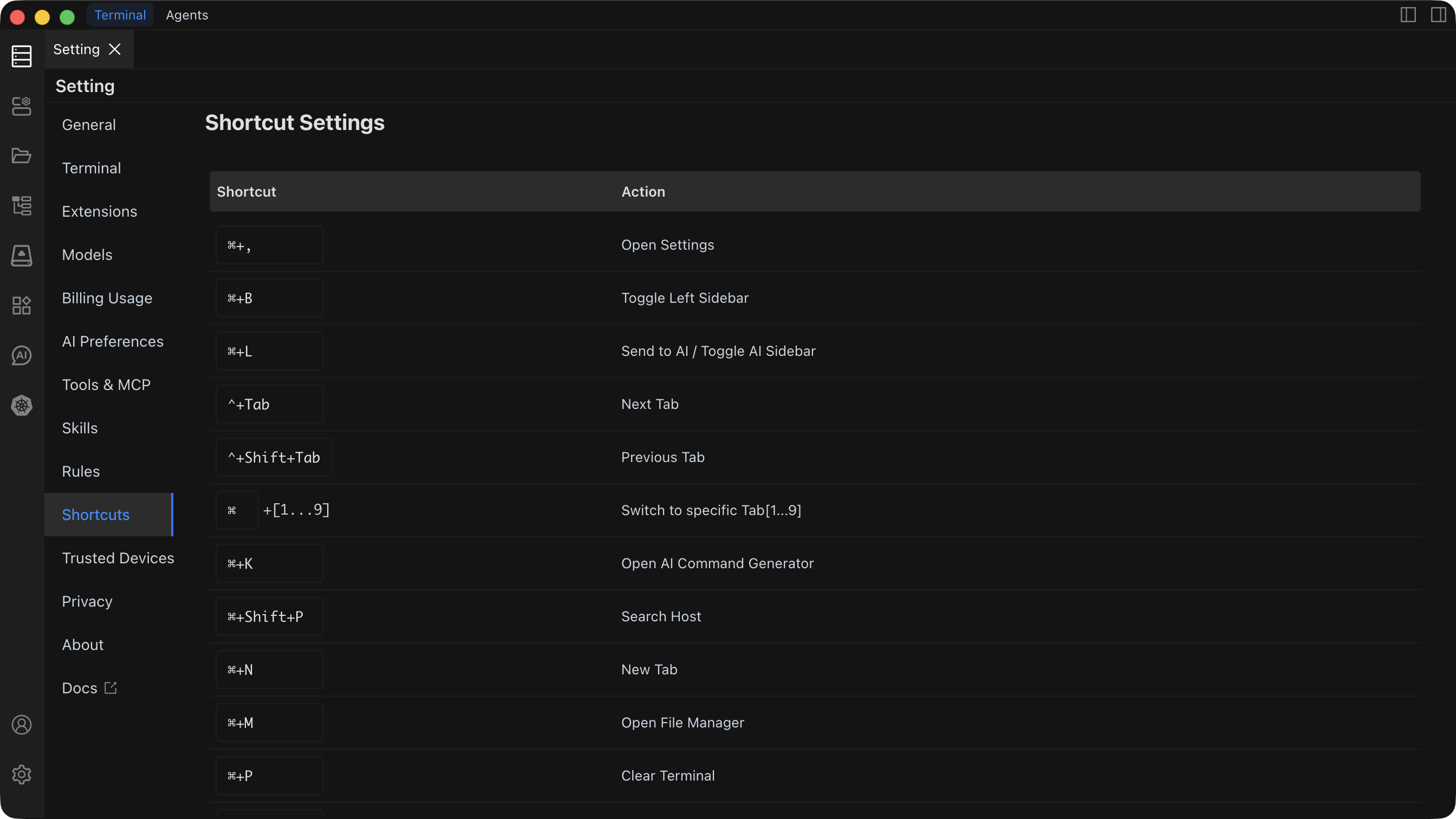
Default Shortcuts
Interface Control
| Function | macOS | Windows / Linux |
|---|---|---|
| Open Settings | Command + , | Ctrl + , |
| Toggle Left Sidebar | Command + B | Ctrl + B |
| Toggle Right Sidebar | Command + Option + B | Ctrl + Alt + B |
| Send to AI / Toggle AI Sidebar | Command + L | Ctrl + L |
| Toggle Layout (Terminal / Agents) | Command + E | Ctrl + E |
| Toggle Agents Layout Left Sidebar | Command + Shift + S | Ctrl + Shift + S |
| Toggle AI Mode | Shift + Tab | Shift + Tab |
Terminal Operations
| Function | macOS | Windows / Linux |
|---|---|---|
| Open AI Command Dialog | Command + K | Ctrl + K |
| Open File Management | Command + M | Ctrl + M |
| Clear Screen | Command + P | Ctrl + P |
| Terminal Search | Command + F | Ctrl + F |
| Copy | Command + C | Ctrl + C |
| Paste | Command + V | Ctrl + V |
Tab Management
| Function | macOS | Windows / Linux |
|---|---|---|
| Switch to Next Tab | Control + Tab | Ctrl + Tab |
| Switch to Previous Tab | Control + Shift + Tab | Ctrl + Shift + Tab |
| Switch to Tab [1-9] | Command + [1-9] | Ctrl + [1-9] |
| New Tab | Command + N | Ctrl + N |
Font Control
| Function | macOS | Windows / Linux |
|---|---|---|
| Zoom In | Command + = | Ctrl + = |
| Zoom Out | Command + - | Ctrl + - |
Customizing a Shortcut
- Open Settings and navigate to Shortcut Settings.
- Find the function you want to rebind.
- Click the shortcut input box next to it.
- Press the new key combination you want to assign.
- If the combination conflicts with another function, Chaterm displays a conflict warning -- choose a different combination or reassign the conflicting shortcut first.
- The new shortcut is saved automatically.
TIP
Choose uncommon key combinations to avoid conflicts with operating-system shortcuts. Custom shortcuts override the defaults listed above.
Resetting Shortcuts
- Open Settings and navigate to Shortcut Settings.
- Click Reset All Shortcuts.
- Confirm the reset in the dialog.
All shortcuts return to their default values.
WARNING
Resetting shortcuts is irreversible. All custom shortcut assignments will be lost.
See Also
- General Settings -- theme, language, layout, and editor options
- Terminal Operations -- detailed guide to terminal features