About
The About page displays Chaterm version information and provides version update checking functionality.
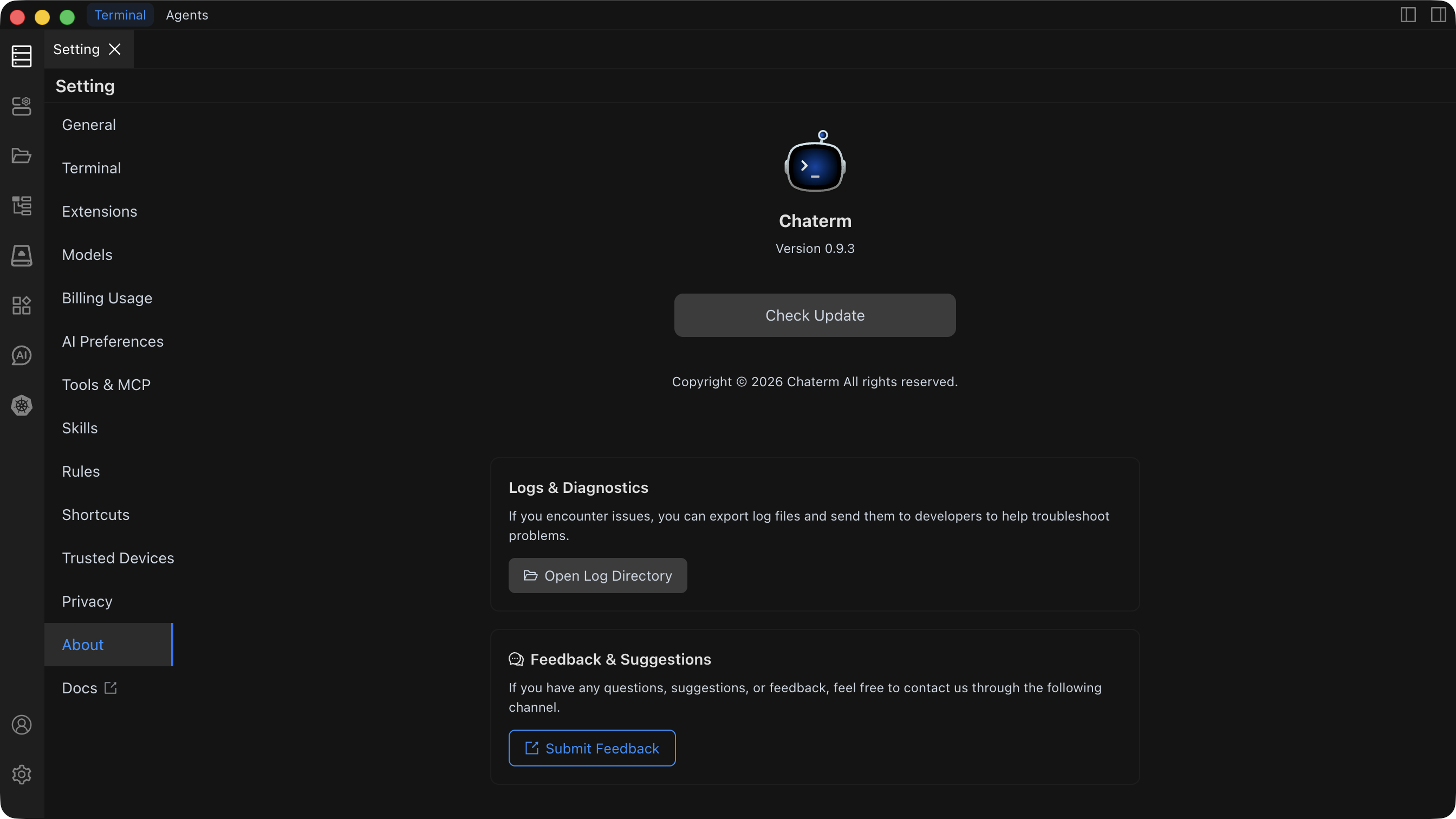
View Version Information
On the About page, you can view the currently installed Chaterm version number. The version number is typically displayed at the top of the page in the format vX.X.X (e.g., v1.0.0).
Version Information Details
- Current Version: Displays the Chaterm version number you are currently using
- Update Status: Shows whether updates are available
Check for Updates
Chaterm provides both automatic and manual ways to check for updates.
Automatic Update Check
Chaterm automatically checks for updates in the following situations:
- When the application starts
Manual Update Check
- Open Settings → About
- Click the Check for Updates button
- The system will connect to the update server to check for new versions
Update Process
When a new version is detected:
- Notification: The system will display an update notification informing you that a new version is available
- View Changelog: You can view the update content and improvements of the new version
- Download Update: Click the download button to start downloading the new version installer
- Install Update: After downloading, follow the prompts to complete the installation