MCP Usage Guide
MCP (Model Context Protocol) lets you extend Chaterm's AI with external tools, knowledge bases, and APIs by connecting to MCP servers.
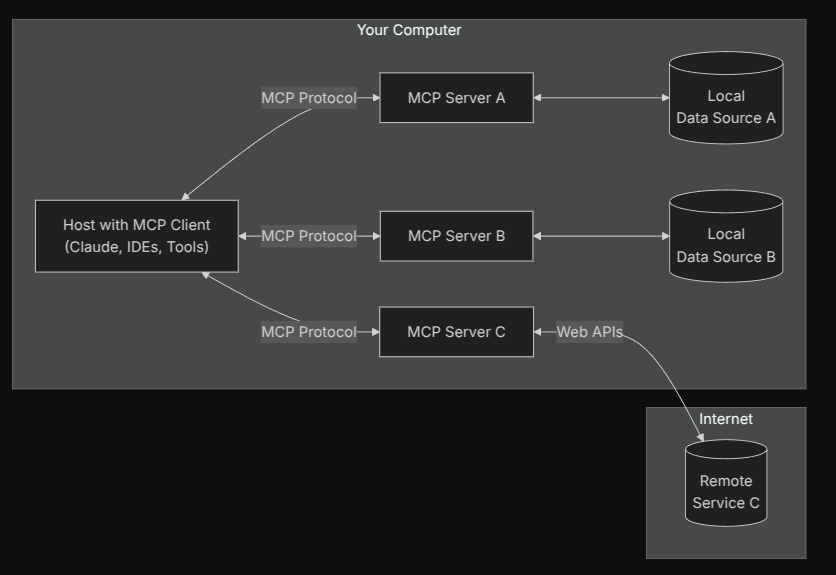
Your First MCP Server
Get up and running in under five minutes.
- Open Settings in Chaterm.
- Go to the Tools & MCP tab and click Add Server — this opens the
mcp_setting.jsonfile. - Paste one of the JSON examples below into the editor.
- Save the file. Chaterm will automatically connect to the server.
After saving, the server's status badge changes from connecting to connected (or displays an error message), and its Tools and Resources are loaded automatically.

TIP
Not sure which server to try first? The filesystem server (shown below) is a great starting point — it gives the AI read/write access to directories you choose.
Configuration
STDIO server (local command-line)
Use this type when the MCP server runs as a local process on your machine.
// MCP server using stdio transport
{
  "mcpServers": {
    "filesystem": {
      "command": "npx",
      "args": [
        "-y",
        "@modelcontextprotocol/server-filesystem",
        "/Users/username/Desktop",
        "/path/to/other/allowed/dir"
      ]
    }
  }
}
STDIO configuration fields
| Field | Required | Description | Example |
|---|---|---|---|
type | No | Connection type, inferred as stdio when command is provided if omitted | "stdio" |
command | Yes | Executable command to start. Can be written as a complete line (with parameters) or just executable name | "npx", "node", "python" |
args | No | Array of arguments passed to the command; when command contains spaces and args is not provided, the system will automatically parse (supports quotes and escaping) | ["-y", "@modelcontextprotocol/server-filesystem"] |
cwd | No | Process working directory | "/Users/you" |
env | No | Process environment variables (key-value pairs) | {"API_KEY": "xxx"} |
disabled | No | Whether to disable this server | true/false |
timeout | No | Call timeout (seconds) | 120, 180 |
autoApprove | No | Auto-approve tool whitelist (by tool name) | ["read_file"] |
Notes:
envFilefield is not supported; if you need to load variables from a file, handle it in the startup environment before writing toenv.- Compatible fields: For backward compatibility,
url?,headers?are also allowed in stdio configuration, but not recommended (will not switch connection type to http).
HTTP server (remote service)
Use this type when the MCP server is hosted remotely and exposes a Streamable HTTP endpoint.
{
  "mcpServers": {
    "context7": {
      "url": "https://mcp.context7.com/mcp",
      "headers": {
        "CONTEXT7_API_KEY": "your-api-key"
      },
      "disabled": false
    }
  }
}
HTTP configuration fields
| Field | Required | Description | Example |
|---|---|---|---|
type | No | Connection type, inferred as http when url is provided if omitted | "http" |
url | Yes | Server address (supports streaming HTTP client) | "https://your-mcp-host.example.com/" |
headers | No | Request headers (e.g., authentication, proxy related) | {"Authorization": "Bearer <TOKEN>"} |
disabled | No | Whether to disable this server | true/false |
timeout | No | Call timeout (seconds) | 120, 180 |
autoApprove | No | Auto-approve tool whitelist (by tool name) | ["search"] |
Notes:
urlmust be a valid URL (strictly validated by schema).- Compatible fields: For backward compatibility,
command?,args?,env?are also allowed in http configuration, only for old configuration migration scenarios; not recommended for long-term use.
Common fields
Reference
schemas.tsin the project:
- Common fields (supported by both types):
disabled?,timeout?(seconds, default value see application),autoApprove?(string array).typeis optional: Can be omitted whencommand(inferred as stdio) orurl(inferred as http) is provided; recommended to explicitly fill for better readability.- Compatible fields: Legacy
transportTypeis supported, the application will automatically convert it totype; not recommended to continue using in new configurations.
Using MCP in Conversations
Toggling tools on and off
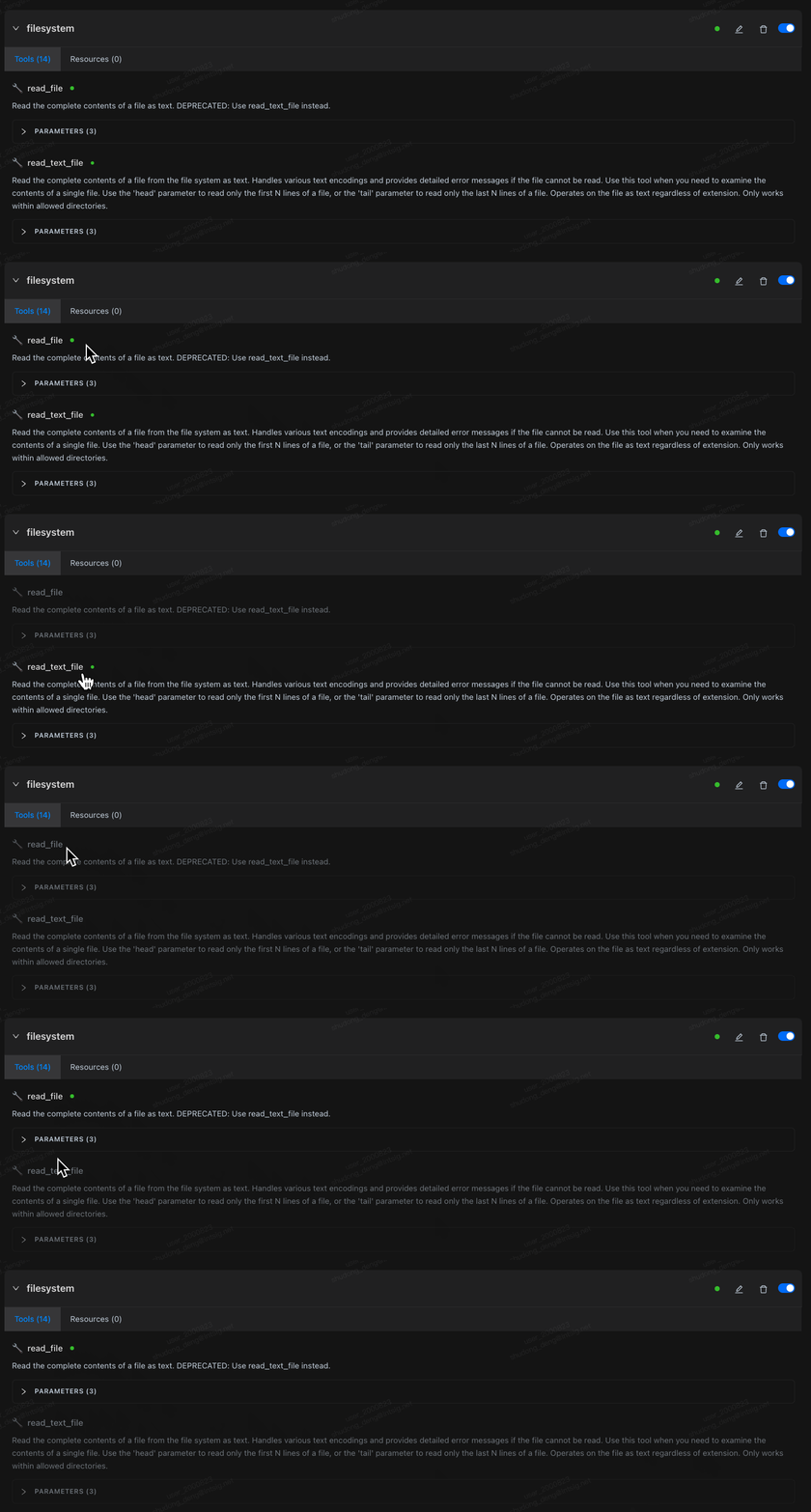
Click a tool name in the Tools list to enable or disable it. Disabled tools are removed from the model context entirely, so the Agent cannot use them. Turning off unused tools is a simple way to save tokens.
Auto-approval
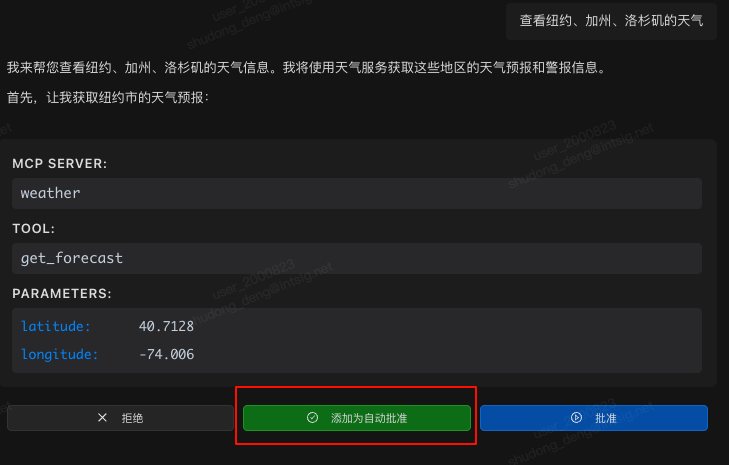
After adding tool names to autoApprove in the configuration, matching tools skip the confirmation step and execute immediately. You can also add tools to the auto-approve list dynamically during a conversation.
WARNING
Only add tools you fully trust to autoApprove. Auto-approved tools bypass the confirmation dialog and execute without user review.
Viewing parameters and resources
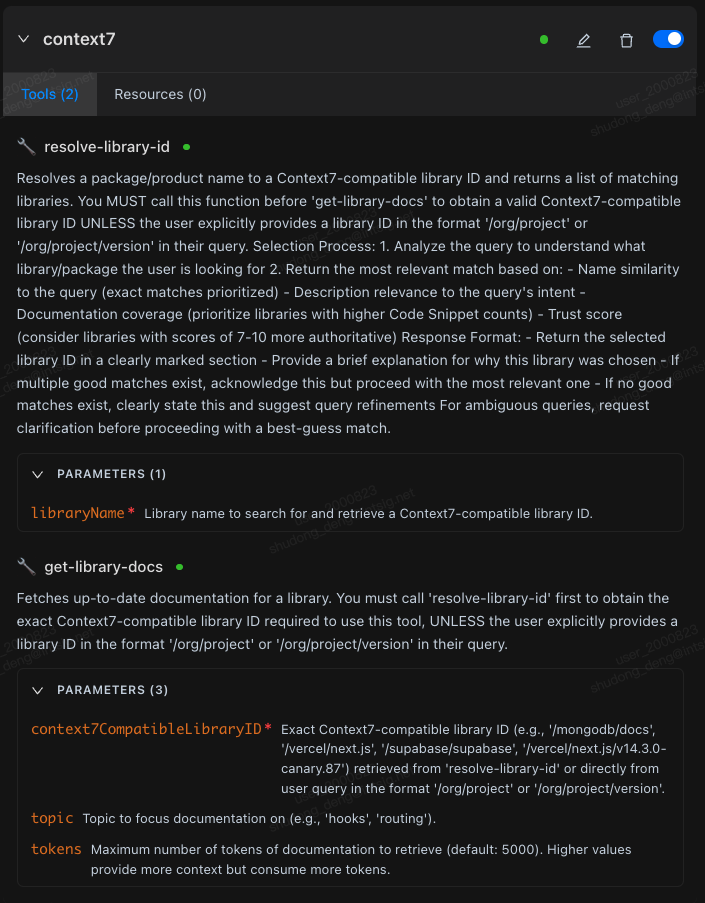
Expand a tool's PARAMETERS panel to see parameter names, whether they are required, and their descriptions.
In the Resources tab you can view resource names, descriptions, and URIs; supported entry points can read resources directly.
Development Tips
File-change auto-restart
If you run a local MCP server from build artifacts (e.g., build/index.js), Chaterm detects changes to that file and automatically restarts the corresponding stdio server. This speeds up your development cycle significantly.
If auto-restart does not trigger, you can manually reconnect by toggling the server Disable then Enable.
Where to Find MCP Servers
- GitHub repositories:
- Online MCP directories:
- PulseMCP: www.pulsemcp.com
Security and Performance Recommendations
Security checklist
- Only add trusted tools to
autoApprove. - Be cautious when injecting credentials in
envorheaders— avoid sharing config files that contain secrets. - Follow the principle of least privilege: only expose the directories, networks, and APIs that are actually needed.
- Performance: For typical networks, set
timeoutto 120 - 180 seconds. For remote services, prefer nearby endpoints and make sure your proxy does not interrupt streaming connections. - Maintainability: Use a consistent naming scheme and group related servers together. Back up your
mcp_setting.jsonregularly.
What to Read Next
- Running into connection or call issues? See MCP Troubleshooting & Best Practices.