Extension Management
Install and manage extensions to customize and expand Chaterm's capabilities.
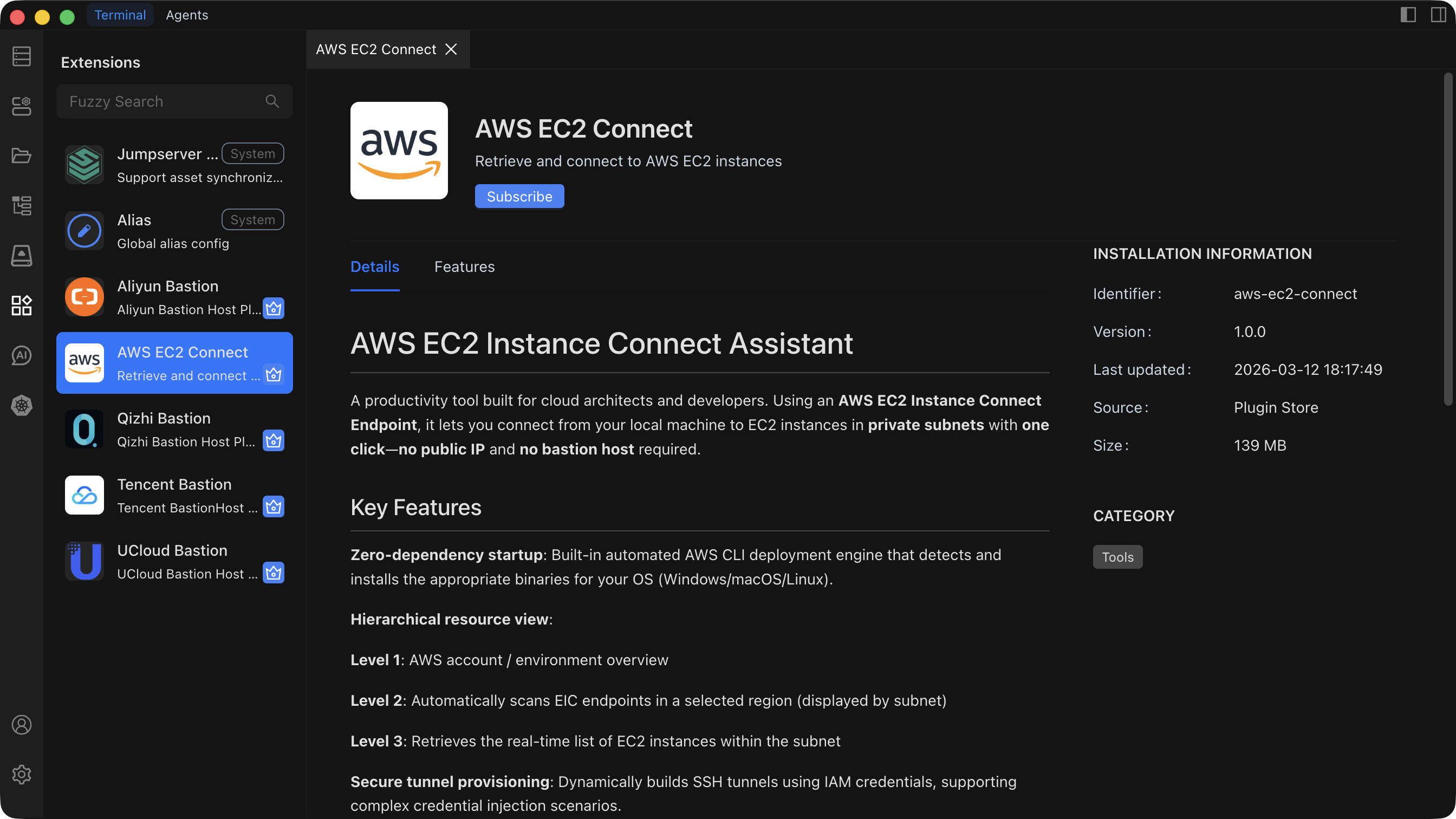
Browsing Extensions
- Click Extensions in the left sidebar to open the Extension Management page.
- Select the Extension Marketplace tab to see all available extensions, or switch to the Installed Extensions tab to see extensions already on your system.
- Use the search bar to filter extensions by keyword.
- Click an extension card to view its details, including a full description, feature list, and version information.
Installing an Extension
From the Extension Marketplace
- On the Extension Management page, browse or search for the extension you need.
- Click the extension card to review its details.
- Click the Install button.
- Wait for the installation to complete.
From a Local File
- Click the Install from File button.
- Select an extension package file (
.chatermformat) from your local machine. - Chaterm verifies and installs the extension automatically.
Auto-enabled After Install
Extensions are automatically enabled as soon as installation finishes. You can start using the new functionality right away, and you can manage the extension from the Installed Extensions tab.
Enabling and Disabling an Extension
- Go to the Installed Extensions tab.
- Locate the extension you want to toggle.
- Click the Enable button to activate a disabled extension, or click the Disable button to deactivate an active extension.
- The change takes effect immediately -- no restart required.
Core Extensions
Disabling certain core extensions may break essential Chaterm functionality (for example, terminal rendering or connection handling). Only disable an extension if you are sure it is not required for your workflow.
Configuring an Extension
Some extensions expose settings that let you customize their behavior:
- In the Installed Extensions tab, find the extension you want to configure.
- Click the Configure button. A settings dialog opens.
- Adjust the available options. Common configuration items include:
- Feature switches (on / off toggles)
- Display options (themes, layout)
- Behavior parameters (timeouts, defaults)
- Integration settings (API keys, endpoints)
- Click Save. The new configuration takes effect immediately.
For global extension preferences, see Extension Settings.
Updating an Extension
When a newer version of an installed extension is available:
- An update badge appears next to the extension in the list.
- Click the Update button to upgrade to the latest version.
- Your existing configuration is preserved after the update.
Uninstalling an Extension
- In the Installed Extensions tab, locate the extension you want to remove.
- Click the Uninstall button.
- Confirm the action in the dialog. The extension and its data are removed from Chaterm.