AI Preferences
Fine-tune how the AI assistant behaves, from reasoning depth to command execution policies.
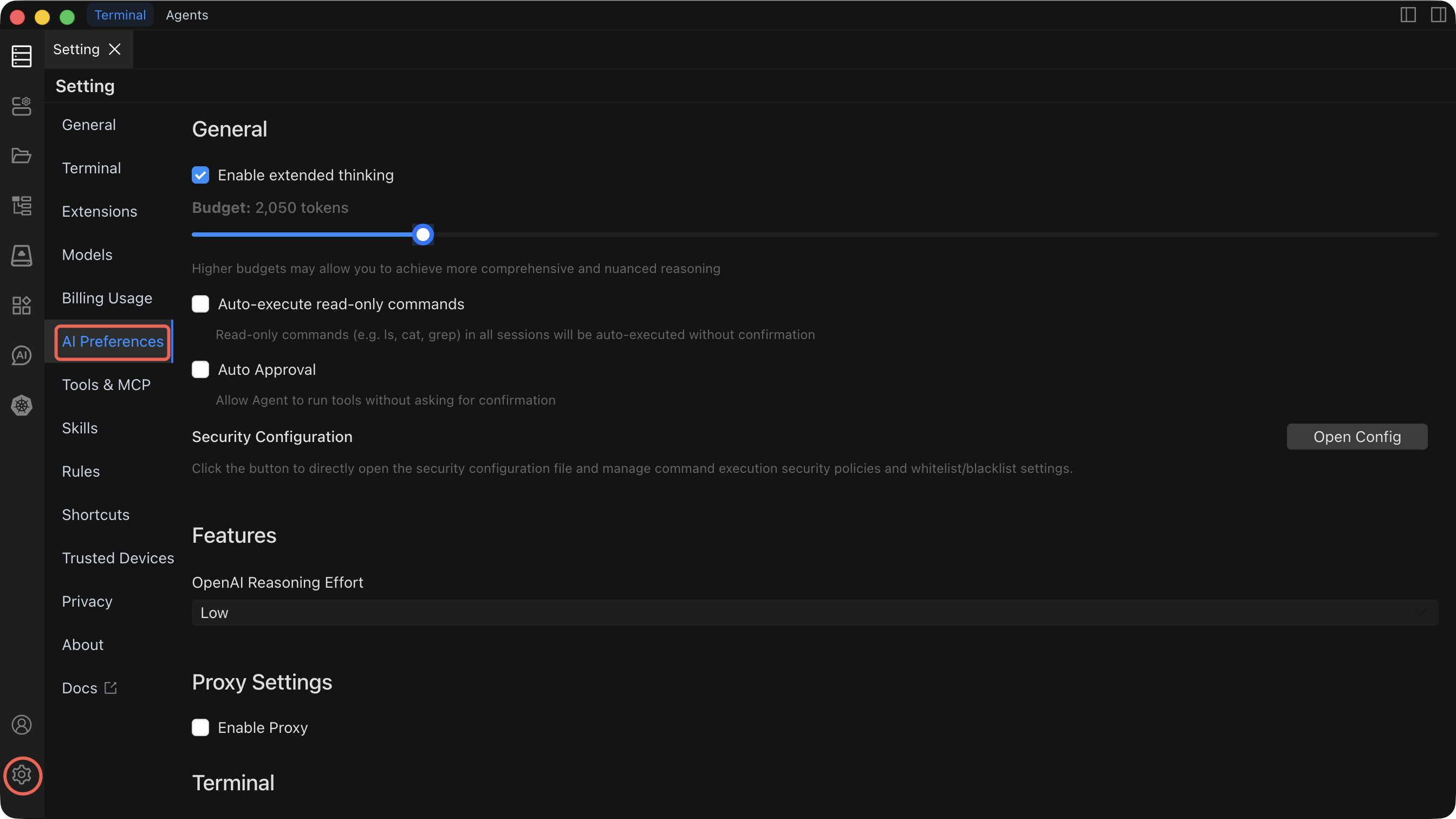
Settings Reference
| Setting | Default | What it does | When to change it |
|---|---|---|---|
| Extended Thinking | Enabled | Allocates a token budget for the AI to reason step-by-step before responding. A higher budget produces more thorough, accurate answers. | Increase the budget for complex multi-step tasks. Decrease it (or disable) when you need faster responses for simple questions. |
| Auto-execute read-only commands Execute | Disabled | Read-only commands (e.g. Is, cat, grep) in all sessions will be auto-executed without confirmation. | Enable only after you are comfortable with the AI's behavior. |
| Auto Execute | Disabled | When enabled, Agent mode executes commands automatically without waiting for your approval. | Enable only after you are comfortable with the AI's behavior and have configured Security rules to block dangerous commands. |
| Security Configuration | — | Defines policies that prevent the AI from executing dangerous or destructive commands (e.g., rm -rf /, DROP DATABASE). | Configure before enabling Auto Execute. Review and update whenever your environment or risk tolerance changes. |
| OpenAI Reasoning Level | Low | Controls reasoning intensity for OpenAI models: Low (fast, lower cost), Medium (balanced), High (deep reasoning, highest accuracy). | Raise to Medium or High for complex troubleshooting or planning tasks. Keep at Low for routine operations to save cost and latency. |
| Proxy Configuration | Disabled | Routes AI API traffic through an HTTP/SOCKS proxy. Configure protocol, hostname, port, and optional authentication. | Enable when your network requires a proxy to reach external API endpoints. Not needed for local models like Ollama. |
| Shell Integration Timeout | 4 seconds | Maximum time the terminal waits for shell integration to initialize when executing a command. | Increase if you experience timeout errors on slow connections or heavily loaded hosts. Decrease to fail faster on unresponsive hosts. |
Extended Thinking
Extended Thinking gives the AI a dedicated reasoning phase before it generates a response. You can control the token budget allocated to this phase.
- Higher budget = more comprehensive reasoning, better accuracy on complex tasks, but slower responses.
- Lower budget = faster responses, sufficient for straightforward questions.
Adjust the budget slider in the preferences panel to find the right balance for your workflow.
Auto Execute
Security implications
When Auto Execute is enabled, the AI will run commands without asking for your confirmation. This is powerful for automation but carries risk. A misconfigured prompt or unexpected AI behavior could execute destructive commands.
Before enabling Auto Execute:
- Configure Security rules to block dangerous commands.
- Test the AI's behavior in manual mode with your typical prompts.
- Start with a non-production environment.
When disabled (the default), every command generated by the AI requires explicit approval before execution.
Security Configuration
Security Configuration lets you define a blocklist of commands or patterns that the AI is never allowed to execute, regardless of the Auto Execute setting.
- Add patterns for dangerous operations (e.g.,
rm -rf,mkfs,shutdown,DROP TABLE). - Rules apply to both Command mode and Agent mode.
- Review your security rules regularly as your environment evolves.
OpenAI Reasoning Level
This setting only affects OpenAI-compatible models. It controls how much reasoning effort the model applies:
| Level | Response speed | Accuracy | Cost |
|---|---|---|---|
| Low | Fastest | Good for routine tasks | Lowest |
| Medium | Moderate | Better for nuanced questions | Moderate |
| High | Slowest | Best for complex reasoning | Highest |
Proxy Configuration
If your network requires a proxy to reach external AI APIs, configure it here. The proxy is disabled by default.
- Protocol — HTTP, HTTPS, or SOCKS5
- Hostname — Proxy server address
- Port — Proxy server port
- Username / Password — Optional authentication credentials
TIP
Proxy settings apply globally to all AI API traffic. If you use a local model via Ollama, traffic to localhost bypasses the proxy.
Shell Integration Timeout
The shell integration timeout controls how long Chaterm waits for the terminal shell to initialize its integration hooks when executing a command. If the timeout is exceeded, the command execution is aborted to prevent blocking.
The default of 4 seconds works well for most connections. Increase it for high-latency or heavily loaded remote hosts.
Related Documentation
- AI Dialogs — Understand Chat, Command, and Agent modes
- AI Settings — Configure providers, models, and create new dialogs