Key Management
Manage your SSH keys in one place for secure, password-free authentication to your hosts.
Prerequisites
Before adding a key, make sure you have:
- Chaterm installed and running on your machine.
- An SSH key pair (public key and private key). If you do not have one yet, generate a pair with
ssh-keygenor a similar tool.
When Do You Need a Key?
When you add a host, Chaterm offers two authentication methods:
| Method | When to Use |
|---|---|
| Password | You know the server password and do not have an SSH key deployed on the server. |
| Key | You have deployed a public key on the server and want to authenticate without typing a password every time. |
If you choose key authentication, you must first add your private key here so Chaterm can use it during connection.
Adding a Key
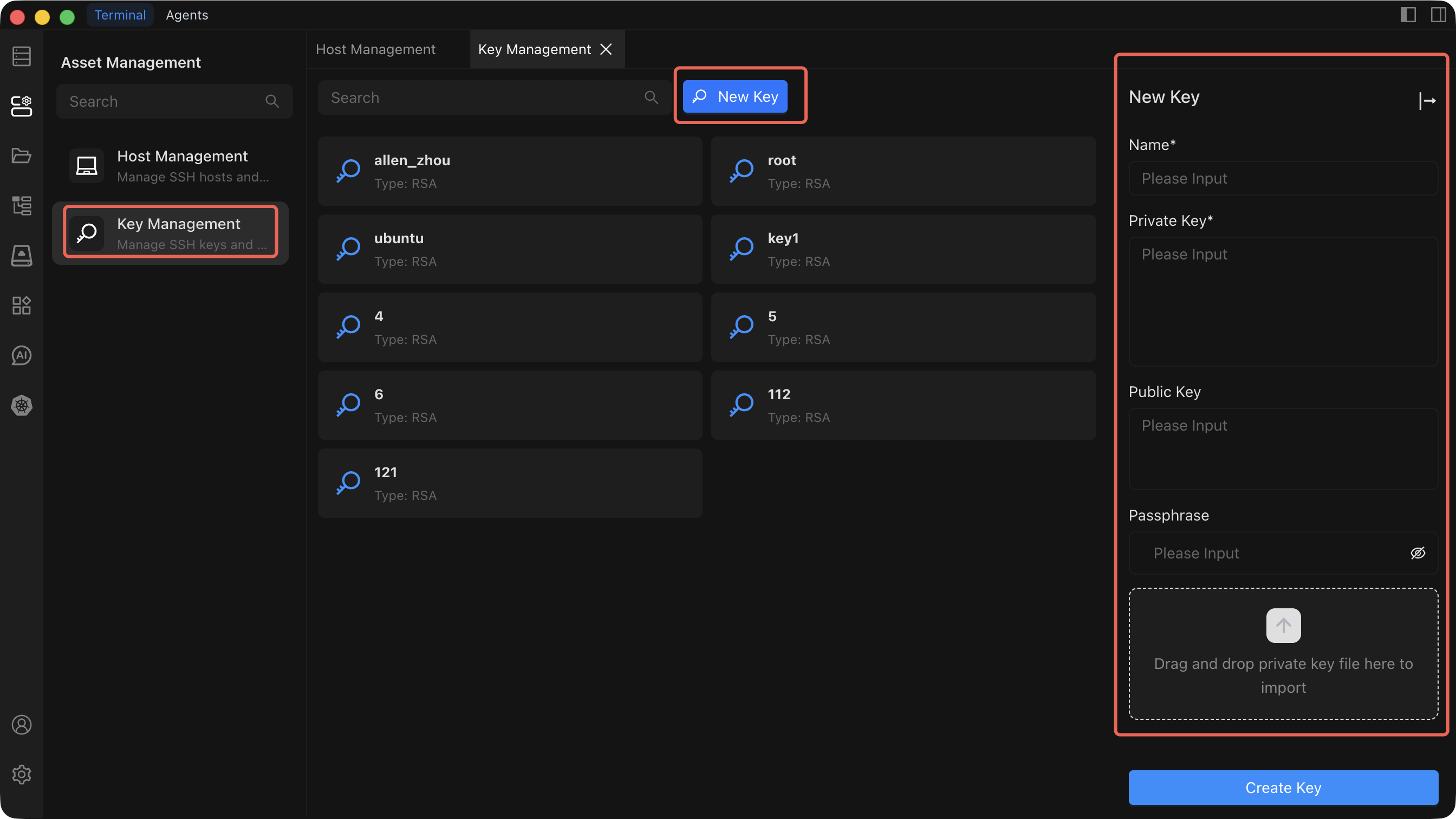
- Click Key Management in the left sidebar.
- Click the New Key button. The add-key dialog opens.
- Fill in the fields described below.
- Click Create to save the key.
Field Reference
| Field | Description | Required |
|---|---|---|
| Key Name | A friendly label for this key (e.g., Production Server Key). | Yes |
| Private Key | The private key content. You can paste it manually or drag a private key file into the import area. | Yes |
| Public Key | The matching public key content. Optional but recommended for reference. | No |
| Private Key Password | The passphrase that protects the private key, if one was set during key generation. | No |
Import Methods
File import
- Drag your private key file into the area labeled "Drag private key file here to import."
- Chaterm automatically detects the key format. Supported formats include
.pem,.key,.rsa, andid_rsa.
Manual input
- Paste the full private key content into the Private Key field. The content should look similar to:
-----BEGIN RSA PRIVATE KEY-----
...
-----END RSA PRIVATE KEY-----
Using a Key with a Host
After adding a key, you can select it when creating or editing a host:
- Go to Host Management and click Add Host (or edit an existing host).
- Set the Authentication Method to Key.
- Choose the key you added from the dropdown list.
- Save the host.
When you connect to that host, Chaterm automatically uses the selected key for authentication -- no password prompt required.
For full details on adding a host, see Add a Personal Host.
Editing a Key
- In the key list, locate the key you want to change.
- Click the Edit button.
- Update the key name, private key content, public key, or passphrase as needed.
- Click Save. Changes take effect immediately.
Deleting a Key
- In the key list, locate the key you want to remove.
- Click the Delete button.
- Confirm the deletion in the dialog that appears.
Before You Delete
Deleting a key is irreversible. Before you proceed:
- Verify that no hosts are currently using this key for authentication. Hosts that rely on a deleted key will fail to connect.
- Back up the private key content externally if you may need it again.